
"Clear your cache" is the first thing anyone suggests when a website misbehaves, and it is usually the wrong lever. The cache is the largest, most harmless thing your browser is holding. The checkbox sitting next to it, the one people tick at the same time without reading, is the small destructive one.
We measured both on one of our own pages. The numbers are from a real site, not a hypothetical one.
The five steps
- First, check whether the cache is even the problem.
Load the page again with a hard reload, which fetches everything fresh without deleting anything: Ctrl+Shift+R on Windows and Linux, Cmd+Shift+R on a Mac. If that fixes it, the cache was stale and you never needed the dialogue. If it does not, clearing the cache will not fix it either.
- Try a private window before you delete anything.
A private or incognito window starts with no cache, no cookies and no site data. If the page works there and not in your normal window, the problem is something stored locally, and now you know that before destroying anything. If it fails in both, the problem is the site or your network.
- Open the clearing dialogue and read the checkboxes.
Every browser puts them in a different place, and the wording is deliberately similar. What matters is the distinction, not the menu path: cached images and files is the harmless one, cookies and other site data is the one that logs you out.
- Tick only the cached files.
Leave cookies and site data alone unless you are specifically trying to sign out everywhere or reset a site's memory of you. Set the time range to the shortest that covers the problem, rather than all time.
- If it still misbehaves, the site is at fault, not your browser.
At that point, clearing more will not help. We will get to the one case where a cache can get properly stuck — a mistake a site has to make, which we found on our own pages while writing this.
What the cache is actually worth
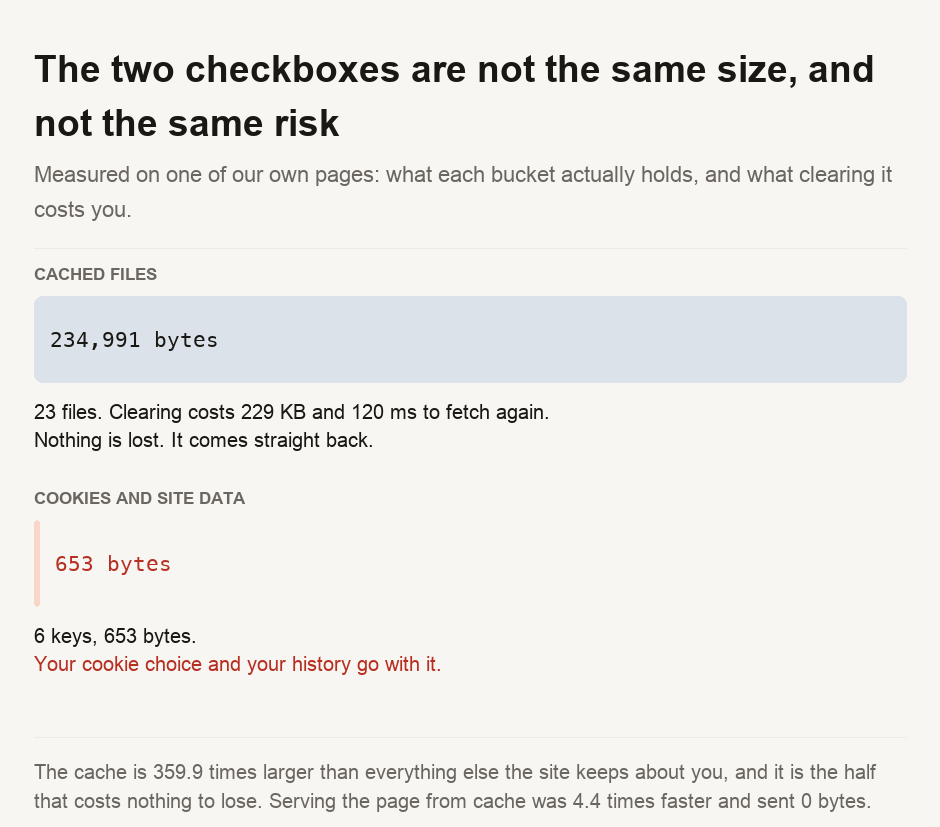
On the page we measured, the browser fetched 23 files. Forced to take them from the network, that cost 234,991 bytes and 120 milliseconds. Served from cache, the same 23 files cost 0 bytes and 27 milliseconds — nothing crossed the network at all, and the page assembled about four times faster.
That is the entire point of a cache. Clearing it by reflex is not a neutral act; it is a step backward. You are paying a quarter of a megabyte and a slower page to fix a problem you have not diagnosed.
What the other checkbox holds
The same page stored 653 bytes about us, across six keys. Three cookies and three entries in local storage. That is roughly a three-hundred-and-sixtieth of the cache, but it is the part with consequences. It holds the answer to the cookie banner and a short list of which tools have been used. Clearing it does not free up any meaningful space. It signs you out, forgets your preferences, and shows you the consent banner again on every site you have ever agreed with.
Nothing in the dialogue tells you that the small number is the expensive one.
When clearing genuinely is the fix
A cache can get properly stuck in one specific case, and it is the site's fault, not yours. A site can tell your browser that a file will never change — the technical wording is immutable, with an expiry a year away — and then change it anyway. The browser believes what it was told and keeps serving the old copy, in some cases for the full year. Nothing you do short of clearing the cache dislodges it.
To avoid this, a site should change a file's address whenever the file changes, usually by appending a version number. The browser then sees a new file, not an old one it already has.
What this audit found in our own tools
Auditing our own pages for this guide turned up three things, and it seems only fair to publish them given what the guide is about.
Every file we serve claims to be immutable for a year, and a third of them had no version number. Of the 24 assets on the page we measured, all 24 were served with a 365-day expiry and 13 carried no version in their address. For images that is harmless in practice, because each one gets a new filename anyway. For two of them — both scripts — it was a problem.
The two were our cookie-consent script and our performance collector. Every other script on the page already carried a version number; these two were referenced by a bare path and had been missed. The consent script was the serious one; a change to privacy settings that cannot reach a returning visitor for a year does not count. The performance collector had already been edited once in place, which means anyone who loaded the earlier copy kept it. Both now carry a version number.
A privacy guard was only being honoured by half the code. This one had nothing to do with caching and surfaced only because we went looking at what the site stores in a browser. We keep a short "recently used tools" list. There are two independent implementations of it, writing to two different keys, and only one of them checked the tool's category. The other recorded everything — including the twelve medical calculators the first one deliberately refuses to remember, because which of those someone opened is not a thing we want sitting in their browser. It is fixed, the category list now lives in one place, and there is a test that fails if the two ever disagree again.
The fonts have the same shape of problem and we have not fixed it. They are referenced without a version from inside a generated stylesheet, and the subset has been regenerated once already. The consequence is cosmetic rather than functional, and the fix belongs in the font-building script rather than in this pass, so it is recorded here rather than quietly left out.
Hard-reload first. It fetches everything fresh, deletes nothing, and settles the question in one keystroke. Then try a private window, which tells you whether anything stored locally is involved before you destroy it. If you must clear, tick only the cached files. On the page we measured, that is 229 kilobytes you will re-download but nothing you will miss. Leave cookies and site data alone unless signing out is what you actually want, because that checkbox is a three-hundredth of the size and all of the damage. And if the page is still wrong afterwards, stop clearing: it is the site, and no amount of deleting on your side reaches it.
Run your own numbers
Everything above can be checked on any site you like, using the network panel in your browser's developer tools. A response from the cache will either report a 304 status ("the browser asked and was told nothing changed") or make no network request at all ("the browser did not even ask"). If a file's address has a version number, it is often a Unix timestamp you can decode to see when the file was last changed. An ETag, by contrast, is usually a hash of the file's contents. If you want the other half of this subject — why a page is heavy before caching enters into it — image formats and page weight covers it.
- The cache-header audit is a shell script that reads the
Cache-Controlof every asset a live page references, committed alongside this guide. It is purecurlagainst production and can be re-run by anyone at any time; the figures here are from the run on 9 August 2026. - The cold-versus-warm comparison cannot be done with
curl, because the thing being measured is the browser cache itself. It was captured on the live page with a PerformanceObserver, fetching every subresource twice — once forcing the network, once allowing the cache — and summing the transfer sizes each time. The exact snippet is recorded in the guide's facts file so the measurement can be repeated rather than taken on trust. - The storage figures are the site's own cookies and local-storage entries, counted in the browser on the same page. They are what this site keeps, and no other site's numbers are implied by them.
- ⚠️ Every number here describes one page on one site on one day, measured on a fast connection. The ratio between the two buckets is the durable part; the absolute byte counts are not, and a media-heavy page would shift them considerably.
Browser menus move. The wording of the two checkboxes has been stable for years across Chrome, Firefox, Safari and Edge, but the path to them changes with almost every release, which is why this guide describes the distinction rather than the menu.

View author profile → · Editorial policy