Here is a photograph from this site. It is 1280 pixels wide, it sat at the top of one of our own guides, and it weighed 198,372 bytes. It weighs 59,766 now. Nothing about the picture changed — same photograph, same dimensions, same page. We finally compressed it.
When this guide was written, this site's performance budget was a single number: under 200 KB for a whole page. That one photograph used almost all of it on its own, before a byte of text, CSS, JavaScript or font. That budget has since been replaced — see the update note at the end, which does not change a single measurement below.
We re-encoded it in a browser — same pixels, nothing resized — and this is what came back.
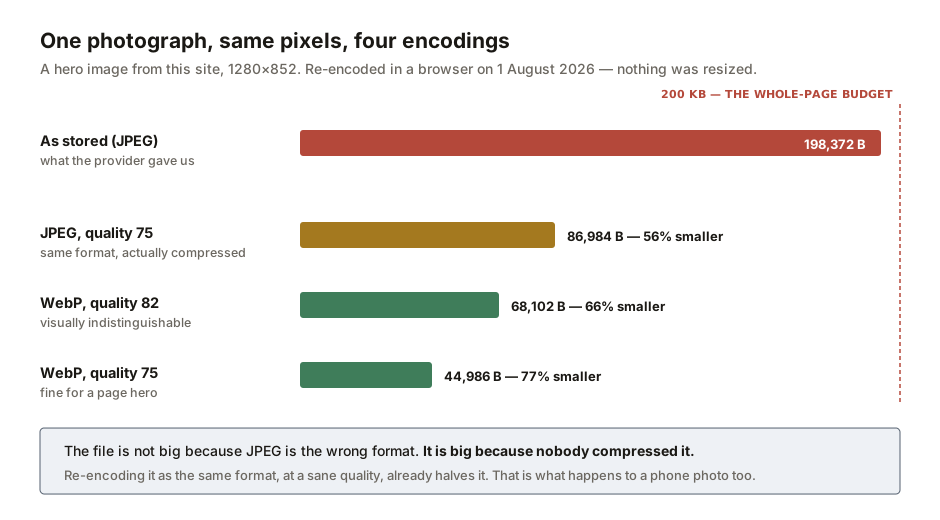
WebP at quality 75 is 44,986 bytes. Same dimensions, same picture, 77% smaller.
But the number that actually explains the problem is the second bar. Re-encoding that file as a JPEG — the format it already was — at a sane quality gives 86,984 bytes. It halves.
The file was not big because it was a JPEG. It was big because it was an uncompressed JPEG.
Why your phone photo is 6 MB
Three things make a phone photo huge, but format is the least of them.
Dimensions. A modern phone camera shoots something like 4000 pixels wide. A photo in a web page is typically displayed at 800 to 1200. You are carrying three or four times more pixels than anything will ever draw, and pixel count scales with the square of the width — halving the width quarters the data.
Quality setting. Cameras encode at very high quality because the photo might be printed, cropped or edited later. That is the right call for an original. It is the wrong call for a copy going into a web page, and nothing converts one into the other automatically.
Everything that is not the picture. A phone photo carries EXIF metadata — camera model, lens, settings, often GPS coordinates — plus a thumbnail preview, and on an iPhone possibly depth maps and a short video for a Live Photo. Usually small next to the image data, occasionally not.
The fix is a two-step process people usually cut in half: resize to display dimensions, then compress. Resizing alone leaves a small image encoded at absurd quality. Compressing alone leaves a 4000-pixel image nobody will ever see at full width.
Which format, and what it is actually for
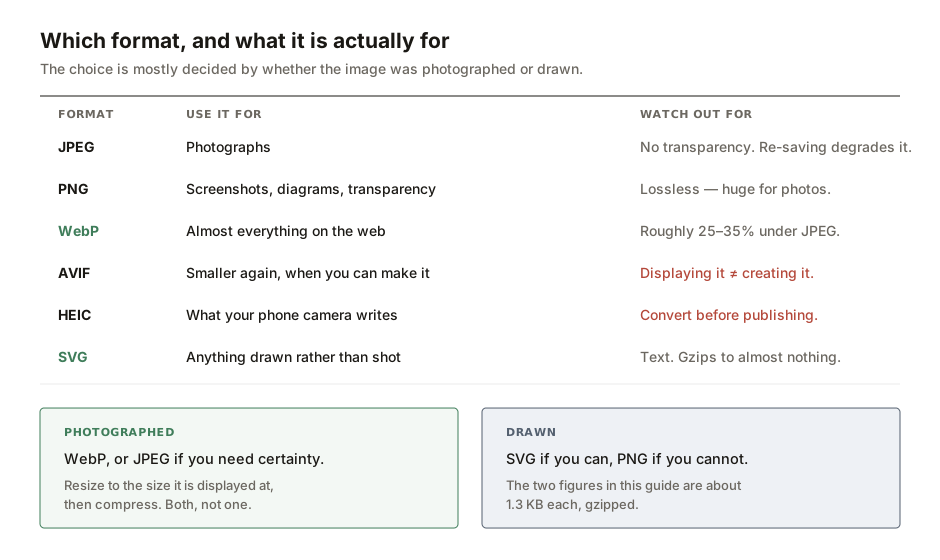
That question does most of the work. Photographed means continuous tone, millions of colours, no hard edges — JPEG and WebP are built for it, and PNG will be enormous. Drawn means flat colour, sharp edges, text — PNG and SVG are built for it, and JPEG will smear the edges into grey mush.
A few notes on the common formats.
PNG is lossless, and people reach for it as though that were a synonym for "good". It is the right choice for a screenshot with text in it, where JPEG artefacts around the letters look terrible. It is the wrong choice for a photograph, where lossless simply means large.
WebP is the sane default in 2026. It does lossy and lossless, it does transparency, it is supported everywhere that matters, and it is typically 25–35% under JPEG at equivalent quality. On our own heroes it came in around 70% under — not because WebP is magic, but because the JPEGs it replaced had never been compressed at all. A well-made JPEG will not hand you a saving like that, and if one does, the JPEG is the thing to look at.
SVG is not really an image format at all — it is text describing shapes. That is why it scales to any size without blurring, and why it compresses so well. The two figures in this guide are about 1.3 KB each gzipped. Together they are under 1.5% of that one photograph.
The AVIF trap, which we fell into ourselves
AVIF compresses better than WebP again. The catch, which most guides skip, is what bit us.
Displaying AVIF and creating AVIF are different capabilities. Browsers picked up AVIF decoding years ago — Chrome 85, Firefox 93, Safari 16.4. Writing one from a canvas is a separate feature that many builds simply do not have. And when the encoder is missing, the canvas specification says the browser should quietly export a PNG instead.
Quietly. No error, no warning. You ask for the smallest format available and receive, for a photograph, one of the largest.
We found this in our own image format converter. It offered "AVIF (cutting-edge)" in the output picker, and its instructions told readers that encoding worked in "Chrome 105+, Firefox 113+, Safari 16.4+" — those are decode milestones, presented as encode support. Testing the actual call in a current Chromium build: both canvas.toBlob and OffscreenCanvas.convertToBlob returned image/png when asked for image/avif, while WebP encoded normally and an AVIF image displayed perfectly.
The tool had even been written with a feature-detection function to prevent exactly this. It had never been called.
It is called now: the option is disabled with a plain label when the browser cannot produce AVIF, the selection falls back to WebP, and any conversion where the browser substitutes a different format is reported instead of passing as a success. We aren't publishing a browser-support matrix for AVIF encoding. The real engineering answer isn't a table that is obsolete on arrival — it is to feature-detect in the browser and tell the user what you found.
HEIC: the format your photo actually is
An iPhone photo is almost certainly a HEIC file. That format is awkward: browsers cannot create them (Apple's encoders are proprietary) and most cannot even open them. Safari can. Chrome and Firefox generally cannot.
Which means the very first step for a phone photo is usually a conversion, and a tool that refuses HEIC at the file picker leaves you with no obvious next move.
Ours did. Our image compressor accepted JPEG, PNG and WebP only, and rejected anything else with "unsupported format" — including on Safari, where it would have worked. Our resizer was the same. Both now accept HEIC. They hand the file to the browser and, if it fails, report the specific format and suggest a next step instead of just showing "unsupported format".
Perform both operations. Resize to the displayed width, then compress at quality 75–82. One step alone will not get you there. Let the content pick the format — photographed or drawn — before anything else. Check the file you get back from any tool, because browsers can substitute formats silently. Convert HEIC before you do anything else. And measure your own pages, on a cold cache. We had a budget and a single uncompressed photo was blowing through it — and when we measured properly, we found we had been reading our own numbers wrong as well.
What this audit found in our own pages, and what we did about it
Every guide here begins by reading the source of the tools it will link to, and this one turned into an audit of our own page weight as well. The first version of this guide reported that audit. This version reports what happened next, including a figure the first version got wrong.
The heroes are fixed. Our image pipeline stored whatever the stock-photo provider's CDN served, and never compressed it. It now re-encodes every image on the way in — WebP at quality 80, long edge capped — and we re-encoded everything already stored. Across the whole library that was 446 files, 49,137,502 bytes down to 25,516,366, a 48% saving. The four heroes this guide cited:
This guide's own hero was the worst of the lot and went unmentioned in the first version: 214,863 bytes, down to 78,480. A guide complaining about heavy hero images was carrying the heaviest one on the site.
Now the correction. The first version of this guide said our tool pages transfer "59 KB across 37 resources" and pass the budget comfortably. The resource count was right and the rest was not. That reading came off a warm cache, where the Resource Timing API reports a transfer size of zero for every file the browser already had. Reload our image compressor page and it does report about 30 KB — because it is downloading almost nothing.
On a cold cache, which is what a first-time visitor actually pays, that same page is 286,015 bytes. It contains zero bytes of photography. It was over the 200 KB budget anyway, and it always had been.
Here is what is actually in it, and in this guide page next to it:
Nine font files were 169 KB — more than four fifths of the entire 200 KB budget, spent before anything specific to the page loaded at all. That was the largest single item on both pages by a wide margin, and it was not a photograph. Fixing the heroes took 136,383 bytes off this page — the biggest thing we could remove from an article, and worth removing. It did not bring the page inside the budget, and no change to an image could have.
So we fixed the fonts too
Three changes, none of them clever. One variable font instead of four static weights — a variable font carries one outline set plus instructions for how it changes with weight, so four cuts of IBM Plex Sans (79,016 bytes) became a single 27,552-byte file. A subset: each face shipped 230 glyphs, and 147 of them appear anywhere in everything this site has ever published. And a supplement, so nothing is lost — the leftovers are mostly capital letters with accents, É and Ö and ß, which are unused today by luck rather than by design. One German name in a future article and a deleted glyph becomes an empty box. So they were not deleted. They sit in a second file behind a unicode-range rule, which the browser fetches only if such a character actually turns up.
That is not a joke at our expense; it is the mechanism working in public. Write about accented capitals and you summon the file that holds them.
We are not going to quote a single total for this page, and the reason is worth more than the number would be. It moves between loads. Article pages lazy-load images further down, so what a visitor transfers depends on how far they scroll and when you take the reading; three honest measurements of this page came back meaningfully apart. The tool page above has no imagery and no lazy loading, which is exactly why it is the one we quote. A figure you cannot reproduce is not a measurement, it is an anecdote — and that applies to the numbers in this guide as much as to anybody else's.
So the honest scoreboard. The photograph problem was real, was ours, and is fixed: 214,863 bytes of hero became 78,480. The font problem was real, was ours, and is fixed: 169,176 became 96,312. And against the 200 KB line, both pages were still over — the cleanest one by about 15 KB, this one by more, because it is an article with a large photograph at the top of it.
That is the part worth taking away. Two genuine fixes, each the largest item available at the time, and the number still does not go green. Page weight is rarely one villain; it is a queue of them, and every fix promotes the next one. The remaining queue here is fonts again (at 96 KB, still the single biggest line), then JavaScript, then CSS. We are publishing the number we actually have rather than the one we would like, because a budget you quietly stop measuring is not a budget.
One last measurement points in the opposite direction from everything above. That 1280-pixel hero renders at about 1222 CSS pixels on a normal retina screen, which means it is not over-sized at all — it is slightly under-resolved, and looks marginally soft on a good display. The new pipeline caps the long edge at 1600 rather than shrinking anything, precisely so that compression and dimensions do not get conflated. Ours were wrong in opposite directions at the same time. Remember that before you fix one problem and assume you have fixed both.
- Update, 19 August 2026. The 200 KB per-page budget this guide is written against no longer exists. On 11 August 2026 it was replaced by three numbers that measure three different things: the render-blocking critical path must stay under 100 KB compressed, everything needed to complete the first view under 1 MB, and the whole page including lazy-loaded assets under 3 MB. Against that standard both pages measured here pass, and the 214,849-byte compressor page passes comfortably. The reason for the change is the finding this guide made: a single per-page number charged nine shared, cached font files to every page on the site, counting a one-time cost hundreds of times and making it look like a per-page emergency. Both fixes below still stand on their own — the hero was above the fold and the fonts were render-blocking, which is exactly what the new budget governs. No measurement has been changed.
- Correction, 1 August 2026. The first version of this guide stated that our image compressor page transfers 59 KB. That figure was read from a warm browser cache and is wrong for a first visit; the cold-cache figure is 286,015 bytes. The claim that our tool pages sit comfortably inside the 200 KB budget was wrong with it — they do not, and neither do our guide pages. The corrected measurements are below. No other figure in the original changed.
- Byte counts for our own images were read from the production server on 1 August 2026 and remain reproducible with curl. The re-encode keeps the original file alongside the new one, so the hero discussed throughout still returns exactly 198,372 bytes at its .jpg URL, while the page now serves the 59,766-byte .webp. The two SVG figures on that page are 1,204 and 1,417 bytes gzipped.
- The four browser-canvas encodings of that hero were produced from the identical source file on 1 August 2026, at the original 1280×852 with no resizing: JPEG quality 0.75 → 86,984 bytes; WebP quality 0.82 → 68,102 bytes; WebP quality 0.75 → 44,986 bytes. The pipeline that shipped encodes at quality 80 server-side and produced 59,766 bytes for the same file, between the two WebP figures above, as expected.
- Page transfer totals are from the browser's Resource Timing API on production, 1 August 2026, summing encodedBodySize across the navigation entry and every resource, after the load event and with the resource count stable — that is the cold-cache figure. Summing transferSize instead is what produced the withdrawn 59 KB reading. The 200 KB per-page performance budget was this project's own standard when these measurements were taken. It was replaced on 11 August 2026; see the update note above.
- The font totals — 169,176 bytes across nine woff2 files, then 96,312 across six — are the sum of the files' own sizes as served, read from HTTP response headers on 1 August 2026, so they do not depend on which page is loaded or when the reading is taken. Two earlier attempts to quote this from a page measurement instead returned 65,144 and 108,320: the first was sampled before the serif requests had settled, the second after this page had triggered the accented-capitals supplement. Both are why the file sizes, not a page snapshot, are what is quoted here.
- The library-wide re-encode figures (446 files, 49,137,502 → 25,516,366 bytes) are the production command's own output on 1 August 2026, and the resulting file sizes were verified independently over HTTP.
- The AVIF encode behaviour was measured directly rather than taken from a compatibility table: in a Chromium 148 engine (an Electron 42 build — noted because codec support is a property of the build, not only the version), canvas.toBlob and OffscreenCanvas.convertToBlob both returned image/png when asked for image/avif, while image/webp encoded normally and an AVIF data URI decoded successfully. The decode milestones cited (Chrome 85, Firefox 93, Safari 16.4) are the widely published ones.
- The state of our own tools — the uncalled feature-detection function, the AVIF option offered regardless, and the HEIC rejections in the compressor and resizer — was read directly from our source on 1 August 2026 and fixed in the same session. Full detail in docs/guide29-image-formats-sources.md.
General guidance on image formats and page weight. Browser codec support changes, and it varies by build as well as by version, so the right move is always to feature-detect rather than to trust a table — including the ones in this guide. Every figure here carries the date it was measured, and one of them has already been corrected.

View author profile → · Editorial policy