You are copying a film onto a memory stick and the progress bar stops. Not an error at the start, which you could have understood — three-quarters of the way through, on a stick with plenty of room left. Windows says the file is too large for the destination. The stick says it has 40 GB free.
Both are telling the truth. The stick was formatted as FAT32, and FAT32 will not hold a single file of four gigabytes or more no matter how much space is left. Every dropdown in every formatting dialogue offers you this choice, and none of them mentions it.
One question decides it
Not four questions, and not a table of specifications. Just this: does anything that has to read this stick predate about 2010?
If no — a modern laptop, a recent TV, a phone with an adapter — choose exFAT and stop reading this section. It moves freely between Windows and Mac, and it has no four-gigabyte wall.
If yes — a car stereo, an older printer, a camera, a router, a device with a USB port and no screen — you need FAT32, and you are accepting the wall. Keep large files off it and split anything that will not fit.
The two other names you will see in that dropdown are for sticks that stay in one place: NTFS if it lives on a Windows machine and never leaves, Mac OS Extended or APFS if it lives on a Mac.
Doing it, and the one part that is irreversible
- Copy anything you want to keep off the stick.
Formatting erases it, there is no undo, and recovery software is a lottery you pay to enter. That is the only step you cannot take back. Everything after it can be redone in thirty seconds.
- Format it, using the answer from the question above.
Disk Utility on a Mac, or right-click and Format on Windows. Give the stick a name you will recognise in a list, and leave the allocation or cluster size alone unless you have read the next-but-one section and have a reason.
- Eject it properly, this time and every time.
This is not superstition. Both FAT formats keep their file index in one place; pulling the stick mid-write is how you lose that index, taking other files with it.
The wall is exact, and we went and found it
Rather than repeat the specification, we built each filesystem as a real volume and asked it for progressively larger files.
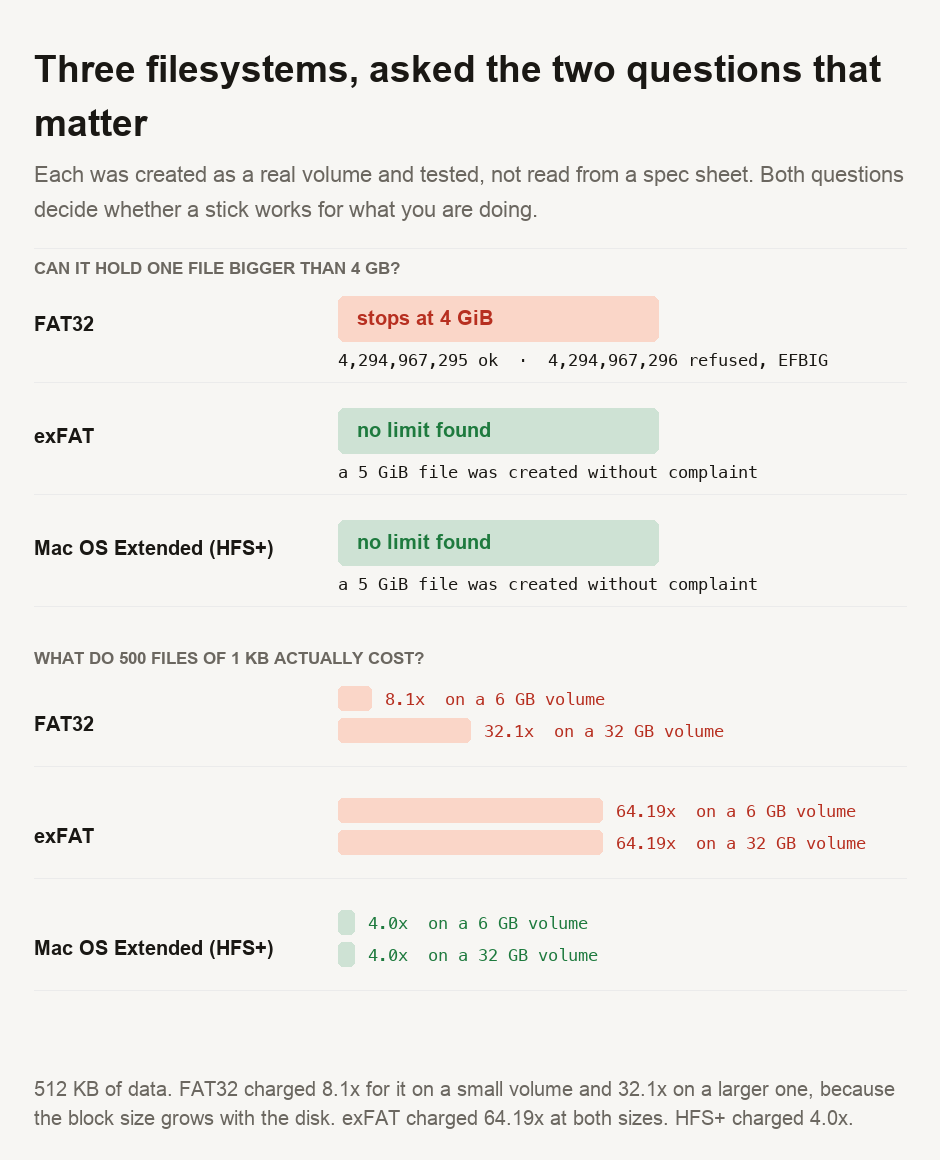
FAT32 created a file of 4,294,967,295 bytes without complaint. One byte more — 4,294,967,296 — was refused outright with the error EFBIG, "file too large". Not a slow failure at the end of a copy; an immediate refusal. exFAT and the Mac-native format both took a five-gigabyte file without a murmur.
Two things follow for anyone standing at that stalled progress bar. The wall belongs to FAT32 itself and not to your stick, so buying a bigger one and formatting it the same way changes nothing — we confirmed that at both volume sizes we tested. The limit is also counted in gibibytes, not gigabytes, which is why the failure feels so arbitrary. A "4 GB" film of 4.1 GB will fit, but one of 4.3 GB will not.
The cost that runs the other way
Here is the part that surprised us, and the reason this guide does not simply say "use exFAT and move on".
A filesystem hands out space in fixed blocks. A file that does not fill its last block wastes the remainder, and on a stick full of documents that waste is the difference between full and half-empty. We wrote 500 files of 1 KB each — half a megabyte of real data — and asked each disk what it had actually allocated.
| Filesystem | On a 6 GB volume | On a 32 GB volume |
|---|---|---|
| FAT32 | 8.1× the data | 32.1× the data |
| exFAT | 64.19× the data | 64.19× the data |
| Mac OS Extended | 4.0× the data | 4.0× the data |
exFAT — the format that solves the big-file problem — charged 64 times the data size for small ones. Half a megabyte of text occupied over thirty megabytes of stick. FAT32 was gentler on a small volume and got worse as the volume grew, because its block size scales with the disk.
So the two questions pull in opposite directions, and neither dropdown says so. For films and disk images, exFAT is the easy choice. For an archive of small documents, the format that looks obsolete wastes less. But neither is as efficient as your computer's native filesystem.
The hidden files nobody mentions
Both FAT formats quietly collected a second file for every file we wrote. Five hundred files produced 500 hidden companions with names beginning ._. The Mac-native format produced none.
These are AppleDouble files, and macOS creates them to store information the FAT formats cannot hold themselves. If you have ever handed a stick to a Windows user who asked why it was full of junk, this is it. The files are invisible on your Mac but obvious on their machine. They also double the number of files on the stick, which — given the block arithmetic above — is not free.
We found them by accident. Our cleanup code deleted a file, the deletion silently took its hidden twin as well, and the script then crashed trying to remove something that had already gone. The crash taught us more than the test did.
Use exFAT. It works on both Windows and Mac, and it will take a file of any size you are likely to have. Fall back to FAT32 only when something old and screenless has to read the stick, and then keep large files off it — the limit is exactly 4,294,967,296 bytes and it refuses rather than warns. And copy anything you care about off the stick before you format it, because that is the one step with no undo.
Checking any of this yourself
The wall is a gibibyte boundary. That gap between the two ways of counting is why the failure feels random. Our file size converter can show you what a "4 GB" file is in bytes, the number the filesystem actually checks. After a large copy, our hash generator can confirm the file arrived intact, so you do not have to trust a progress bar. The unit converter handles the rest of the base-2 versus base-10 confusion this subject is full of.
- Every figure comes from a script committed alongside this guide. It creates each filesystem as a real disk image, mounts it, asks for files either side of the 4 GiB boundary, then writes 500 small files and reads back what the disk actually allocated. Nothing here is taken from a specification.
- We probed the file-size limit with
truncaterather than by copying. This forces the filesystem to report its limit as an error code immediately, instead of failing slowly mid-write, allowing us to state the boundary to the byte. - We measured everything at TWO volume sizes. Block size scales with volume size, so a single measurement would have been misleading in a way a reader could not detect. FAT32's small-file overhead changed between the two; its 4 GiB wall did not.
- ⚠️ Measured on macOS, using disk images rather than physical sticks. The 4 GiB limit is a property of FAT32 and will not differ elsewhere. An operating system chooses the block size when it formats, so Windows may pick differently for the same capacity. The ordering should hold, but the exact ratios are ours.
NTFS and APFS are named in the guidance above but were not measured here. Neither can be created as a test volume on our test machine without third-party drivers, and reporting figures we did not take ourselves would defeat the point.

View author profile → · Editorial policy