Someone opens the activity monitor because their laptop feels slow, sees that almost none of the memory is free, and concludes they need more of it. This is a nearly universal misreading of the wrong number.
Free memory near zero is not a symptom. On a healthy machine it is the expected state, and a system that leaves memory sitting idle has wasted something you paid for.
What "free" is actually counting
Modern operating systems fill unused memory with things you are likely to want again — recently read files, the code of applications you closed a minute ago. That content is free to discard the instant anything needs the space, so holding it costs you nothing and saves a disk read when it turns out to be useful.
So the free figure counts memory that is doing nothing at all, and the operating system works hard to keep it small. Watching it fall towards zero and concluding you are short is reading the gauge backwards.
The machine this was written on
Here is a reading from a laptop with 17.2 GB installed, taken while it was doing ordinary work.
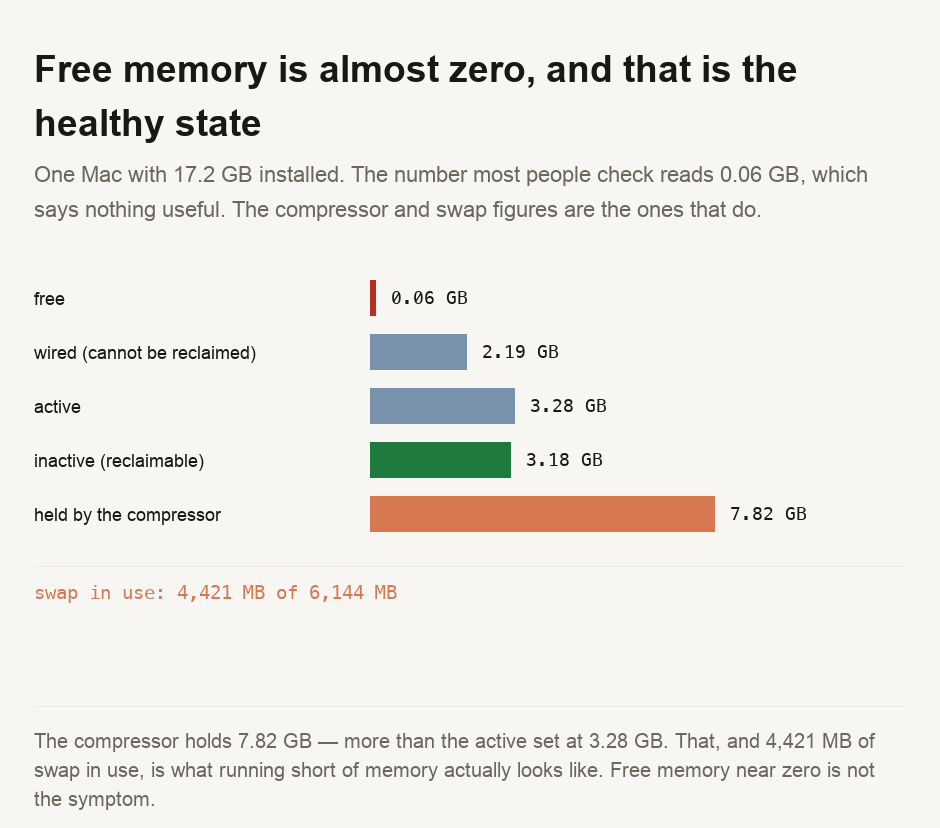
Free memory: 0.06 GB. On a machine with more than seventeen. If free memory were the measure, this laptop would be in crisis, and it was not — it was running a browser, a container stack and an editor without complaint.
The useful figures sit further down. 3.18 GB is inactive: real content, immediately reclaimable, effectively available. 2.19 GB is wired and cannot be reclaimed at all. And 7.82 GB is held by the compressor.
The compressor is the number to read
When memory runs short, the system does not go straight to disk. It compresses pages that have not been touched recently and keeps them in RAM, smaller. It is fast, it is invisible, and it means a machine can be under real pressure while still feeling fine.
On this laptop the compressor holds 7.82 GB — more than the active set of 3.28 GB. Nearly half the installed memory is compressed content. That is a machine working hard to fit a workload into the space available, and it is the honest answer to whether this laptop would benefit from more.
Beneath that sits swap, which is the same idea using disk instead. 4,421 MB of 6,144 MB is in use. Swap is far slower than compression, and sustained heavy swapping is what "slow" actually feels like.
So how much do you need?
The question has no general answer, and any article that gives you one in gigabytes is guessing about your workload. But it has a personal answer you can read off your own machine.
Look at compressor and swap while you are doing the work you actually do — not while idle, which tells you nothing. If both stay near zero, you have headroom and more memory would change nothing you would notice. If the compressor holds a large share of your installed memory and swap is filling, your machine is managing a shortage. That is when more memory — not a faster disk or a cleaner desktop — is the fix.
The reasoning here matters. You are not comparing your machine to a recommendation; you are asking whether it is currently rationing, which is a question only it can answer.
Ignore free memory — on this machine it was 0.06 GB of 17.2 GB while everything ran fine, and a system that leaves memory idle has wasted it. Read the compressor and swap figures instead, and read them while you are doing your real work rather than at rest. Here the compressor held 7.82 GB, more than the 3.28 GB active set, with 4,421 MB of swap in use: that is a machine rationing, and the case where more memory genuinely helps. If both sit near zero under load, buying more will change nothing you can perceive, whatever the specification comparison suggests.
Reading your own
Everything above came from tools already installed — vm_stat for the page counts, sysctl vm.swapusage for swap, and ps for the per-process figures — and the script is committed with this guide. The activity monitor shows the same values with friendlier labels; the memory-pressure graph is the compressor and swap story in one line.
If you are converting between the units these tools report, our data storage converter handles the gigabyte-against-gibibyte gap that makes installed memory never quite match the sticker. Our guide on what "disk full" is counting is the same lesson applied to storage, where the number everybody checks is likewise the wrong one.
- All figures were read from the operating system's own accounting on one machine —
vm_statwith page counts converted at the reported page size,sysctlfor installed memory and swap usage, andpsfor resident set sizes. Nothing is an estimate. - ⚠️ One Apple Silicon Mac, one moment, one workload. Your numbers will differ, and they should — the argument is about which figures carry information, not about these specific gigabytes.
- ⚠️ Windows and Linux account for memory differently and use different names, though both also fill unused memory with cache and both report a small free figure as normal. The specific tools and labels here are macOS.
- ⚠️ We did not measure the performance cost of compression or swapping on this machine, and the guide does not state one. That would need a benchmark under controlled load, which we did not run.
General information about how operating systems account for memory. Whether a particular machine would benefit from an upgrade depends on the work you do on it, which only your own readings under real load can tell you.

View author profile → · Editorial policy