Hermes Agent is Nous Research's open-source, MIT-licensed AI agent — and it is built around one idea the other agents on our shelf don't have: a learning loop. In the project's own words, it "creates skills from experience, improves them during use, nudges itself to persist knowledge, searches its own past conversations, and builds a deepening model of who you are across sessions." That framing matters. Hermes is pitched as a personal agent that happens to be excellent at code, not a coding tool that happens to chat — it will run in your terminal, but it will just as happily live in your Telegram or Discord and message you when a scheduled job finishes. On raw GitHub traction it is among the most-starred agents we track — 229,674 stars in our directory as of 24 July 2026 — but it sits outside our AI coding agents roundup, which ranks tools built for coding rather than general agents that also code well.
This guide is an executed tutorial, not a paraphrase of the docs: we ran every command below on a real machine and pasted the actual output. By the end you'll have Hermes Agent v0.18.2 installed, on your PATH, health-checked with its built-in doctor, and pointed at a model provider — ready for a first conversation.
Tested configuration: macOS 26.5.1 on Apple Silicon (arm64), zsh, Hermes Agent v0.18.2 (release 2026.7.7.2), Python 3.11.15 — executed 15 July 2026.
Step 1: Install
Hermes ships an official installer script. This is the exact command we ran:
curl -fsSL https://hermes-agent.nousresearch.com/install.sh | bashOne habit we'd recommend before piping anything from the internet into bash: fetch the script first and skim it. We did — pull it down with curl -fsSL https://hermes-agent.nousresearch.com/install.sh -o install.sh, read it, then run it. Thirty seconds of reading is cheap insurance, and in this case the script does exactly what the official installation guide says it does: it installs uv (the fast Python package manager), uses uv to provision Python 3.11 with no sudo required, pulls in dependencies like Node.js, ripgrep and ffmpeg, clones the repo, builds a virtual environment, and wires up a global hermes command plus LLM provider configuration.
On our Mac the layout after install matched the docs exactly:
- Code:
~/.hermes/hermes-agent/— a git clone of the project (our--versionoutput later confirmed "Install method: git") - Data:
~/.hermes/— the installer's closing banner listedcron/,sessions/andlogs/here - Binary:
~/.local/bin/hermes— per the install docs, the launcher that ends up on your PATH (confirmed present in our run)
The installer finishes with a short command cheat sheet — hermes to start chatting, hermes setup for API keys and settings, hermes config to view configuration, hermes gateway install for the messaging-and-cron gateway service, and hermes update to stay current.
Step 2: The PATH gotcha
Here is the part that tripped us up, and likely will for you. Type hermes straight after the installer finishes and your shell won't find it — the installer itself warns you about this in its final output. In our run we called the binary by its direct path until the reload. The binary is on disk at ~/.local/bin/hermes, but your current shell session hasn't re-read its profile, so the PATH change hasn't landed yet.
The installer tells you this, in yellow, right at the end of its output:
⚡ Reload your shell to use 'hermes' command:
source ~/.zshrc
So run exactly that — source ~/.zshrc — or simply close the terminal tab and open a new one, which achieves the same thing. (Bash users get source ~/.bashrc instead; macOS has defaulted to zsh since Catalina, so on a 2026 Mac it's almost certainly zsh.) After the reload, hermes resolves normally. One more wrinkle from our run: our shell briefly complained about no such file or directory: ~/.hermes/bin/hermes — a stale path from the shell's command cache. It was harmless and the command still ran; hash -r or a fresh terminal clears it entirely.
Step 3: Verify
Two checks before you configure anything. First, the version:
hermes --version
Hermes Agent v0.18.2 (2026.7.7.2) · upstream bb5fc723
Install directory: ~/.hermes/hermes-agent
Install method: git
Python: 3.11.15
OpenAI SDK: 2.24.0
Up to date
That one command confirms four things: the pinned release, the code's location, the integrity of the Python 3.11.15 environment, and that you are current with upstream. Second, run the built-in health check:
hermes doctor
🩺 Hermes Doctor
◆ Security Advisories      ✓ No active security advisories
◆ MCP Server Security      ✓ No suspicious MCP stdio commands
◆ Python Environment       …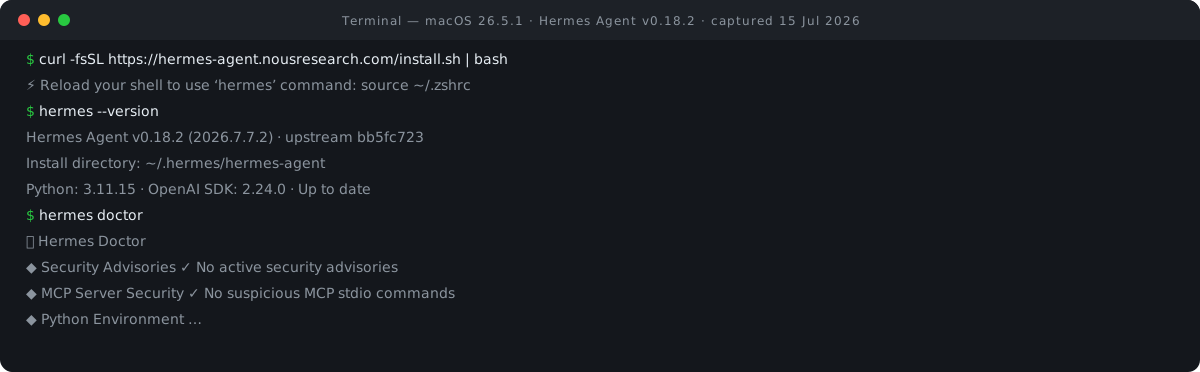
The `doctor` command is impressively thorough. Beyond the usual environment validation, it phones up the project's security-advisory feed and — notably — scans your configured MCP servers for suspicious stdio commands. Given the number of agent compromises from poisoned MCP servers in the past year, a first-party scanner shows the project takes its threat model seriously. Run hermes doctor again any time something feels off. If you're hand-writing MCP server entries in the first place, our MCP server config builder assembles the JSON — command, args and env — so you can see exactly what you're about to let an agent run.
While you're here, glance at hermes --help. The subcommand list is enormous — over fifty entries, from the expected (chat, model, config, mcp, sessions) to the distinctly personal-agent-flavoured (cron, memory, skills, learning, journey, and yes, pets). You will not need most of it today, but it previews the project's surface area.
Step 4: Configure a model
Hermes doesn't ship a model; it talks to one you point it at. The official docs put it plainly: it "works with Nous Portal, OpenRouter, OpenAI, or any endpoint" that speaks the OpenAI-compatible API. The interactive configurator is:
hermes setup
That walks you through API keys and settings in one pass. The docs flag a faster path if you don't already have a provider account: hermes setup --portal signs you into Nous Portal, and per the docs "one OAuth covers a model plus all four Tool Gateway tools" — web search, image generation, text-to-speech, and browser use — so a single login gets you a fully tooled agent. If you'd rather bring your own key, OpenRouter is the natural multi-model choice and OpenAI works directly; the custom-endpoint option means anything with an OpenAI-compatible API is fair game. To change your default later, hermes model ("Select default model and provider," per the built-in help) does exactly that. Because a bring-your-own-key setup bills you at the provider's own rates, our LLM cost calculator is a quick way to sanity-check what a month of agent use costs at a given model's prices before you pick one.
Once a provider is configured, type hermes and you're chatting.
What makes it different
Most agents forget you the moment the session ends. Hermes's defining feature is that it doesn't. The README describes a closed learning loop: agent-curated memory with periodic nudges to persist what matters, autonomous skill creation after complex tasks, skills that self-improve during use, and full-text search over past sessions with LLM summarisation for cross-session recall. In practice that means the agent you have in month three is measurably more useful to you than the one you installed — it has accumulated skills shaped by your actual work. If you want to see what a hand-written agent skill looks like rather than waiting for one to emerge, our agent skill scaffolder generates a SKILL.md — YAML frontmatter plus instructions — for Claude Agent Skills.
The second differentiator is where it lives. The gateway serves "Telegram, Discord, Slack, WhatsApp, Signal, and CLI — all from a single gateway process," per the README, and a built-in cron scheduler can deliver the output of scheduled jobs to any of those platforms. Combine the two and you get workflows like a morning research digest landing in your Telegram, produced by an agent that remembers what you cared about last week. The README's deployment pitch — run it on a $5 VPS — exists precisely because a personal agent is most useful when it's always on.
A caution before you turn everything on: an agent that writes and executes its own skills runs code on your machine by design. On a work laptop, start conservative. Hermes gives you the levers — a --safe-mode flag sits right in --help (alongside its cheerful opposite, --yolo, which you should treat with respect), the security docs describe command approval, DM pairing and container isolation, and hermes doctor audits your MCP servers. Use safe mode and approvals until you've watched how it behaves; widen the leash deliberately, not by default.
Versions & limits
Everything above was verified by execution on 15 July 2026 against Hermes Agent v0.18.2 (release 2026.7.7.2, upstream commit bb5fc723) with Python 3.11.15 on macOS 26.5.1, Apple Silicon. Hermes moves fast — hermes update is a first-class command — so a later version may rename or add screens; the install flow and PATH behaviour should stay stable. If you want it gone, hermes uninstall is right there in the subcommand list, and the docs maintain a dedicated Updating & Uninstalling page.
Two things this guide deliberately doesn't cover. Gateway and messaging-platform setup (hermes gateway install, bot tokens, DM pairing) is a proper project of its own and deserves its own guide, as does deploying Hermes to an always-on VPS. This guide covers hosted providers only — though if you want a fully local stack, the custom-endpoint option means you can pair it with a local model via our Ollama on Mac tutorial. For the wider context on where Hermes sits among its peers, see its RECATOOLS directory entry.

View author profile → · Editorial policy