OpenClaw, an open-source personal AI agent, is on a steep adoption curve. The repo was created in November 2025 and stood at 383,562 GitHub stars when we checked the GitHub API on 20 July 2026. It answers you on the messaging apps you already use, runs tools on your behalf, and takes whatever LLM key you bring. You can see how it stacks up against other agents on our traction sort, and its full profile lives in the RECATOOLS AI directory.
Its 2026 security record, though, argues against installing it straight onto your laptop as a first date. Security researchers reported between 17,500 and 40,214 internet-exposed OpenClaw/Moltbot instances (Hunt.io and Infosecurity Magazine — news reports, figures vary by scanning methodology). Koi Security's audit of the ClawHub skills registry found 341 malicious skills, 335 of which pushed the macOS Atomic Stealer through fake "Prerequisites" instructions (vendor report, February 2026). And CVE-2026-25253 — a one-click token-theft-to-RCE bug in the Control UI, CVSS 8.8 — was fixed in v2026.1.29 on 30 January 2026, per The Hacker News. None of this makes OpenClaw unusable. It makes containment the sane default.
Docker gives you a tank for the lobster. In this tutorial we run OpenClaw entirely inside containers, with every piece of state — config, workspace, auth secrets — deliberately pointed into a single folder, ~/openclaw-box, that you can delete to make the whole thing vanish. Everything below marked as a terminal block was actually executed on 20 July 2026 and is reproduced verbatim from our captured session; anything we did not run is explicitly labelled "per the OpenClaw docs".
What OpenClaw actually is
OpenClaw started life in November 2025 as Clawdbot, Peter Steinberger's personal agent that grew out of a WhatsApp gateway. It became Moltbot on 27 January 2026 after an Anthropic trademark request ("Clawd" sounded too much like Claude), then molted one last time into OpenClaw on 30 January 2026 — all documented on the project's own lore page. Steinberger announced on his blog on 14 February 2026 that he was joining OpenAI, with the project moving to an independent, OpenAI-backed foundation; it remains MIT-licensed open source, per the npm package and README.
Three design choices define it. First, it is messaging-first: rather than living in yet another web app, the agent answers you on WhatsApp, Telegram, Slack, Discord, Signal, iMessage and a long list of other channels. Second, it is extensible through skills — folders with a SKILL.md manifest — installable from the ClawHub registry. Third, it is BYO-LLM: the docs list 60+ providers, from Anthropic and OpenAI to local runtimes like Ollama and LM Studio. You supply the brain, OpenClaw supplies the hands. Decide carefully where those hands can reach.
Step 1: Clone the repo at the pinned release tag
We pin everything in this guide to v2026.7.1, the latest stable GitHub release (published 13 July 2026). Pinning matters more than usual here: OpenClaw uses date-based versioning and its beta channel moved from beta.1 to beta.3 between 15 and 18 July. A tutorial against latest would be stale — and unauditable — within weeks. First, create the box folder and clone into it.
mkdir ~/openclaw-box && cd ~/openclaw-box
git clone --depth 1 --branch v2026.7.1 https://github.com/openclaw/openclaw.git
Cloning into 'openclaw'...
…
Note: switching to '2d2ddc43d0dcf71f31283d780f9fe9ff4cc04fe4'.
You are in 'detached HEAD' state. You can look around, make experimental
changes and commit them, …
cd openclaw
The detached-HEAD notice is expected — we checked out a tag, not a branch, and we will never commit to this tree.
Step 2: Point all state into the box, then run the setup script
By default, the OpenClaw docs place config under ~/.openclaw and secrets under ~/.config/openclaw. We deliberately override that: three environment variables redirect the config, workspace and auth-secret directories into ~/openclaw-box, and a fourth pins the exact image tag so the setup script pulls 2026.7.1 instead of latest. The result is that everything OpenClaw touches, from tokens to agent-written files, lives inside one folder you control.
export OPENCLAW_IMAGE=ghcr.io/openclaw/openclaw:2026.7.1
export OPENCLAW_CONFIG_DIR="$HOME/openclaw-box/state"
export OPENCLAW_WORKSPACE_DIR="$HOME/openclaw-box/workspace"
export OPENCLAW_AUTH_PROFILE_SECRET_DIR="$HOME/openclaw-box/auth-secrets"
./scripts/docker/setup.sh
==> Pulling Docker image: ghcr.io/openclaw/openclaw:2026.7.1
…
Digest: sha256:6a31d44b2944e7adcd2b582bf6fb463111264ebca97a0201795b799135bd102c
Status: Image is up to date for ghcr.io/openclaw/openclaw:2026.7.1
…
==> Onboarding (interactive)
Docker setup pins Gateway mode to local.
Gateway runtime bind comes from OPENCLAW_GATEWAY_BIND (default: lan).
…
Gateway token: stored in Docker environment/config (not printed).
…
==> Starting gateway
…
 Container openclaw-openclaw-gateway-1 Started
…
Config: /Users/jeffreytan/openclaw-box/state
Workspace: /Users/jeffreytan/openclaw-box/workspace
Token: stored in Docker environment/config (not printed).
A single script pulls the image, runs onboarding, generates a gateway auth token, and starts the gateway via Docker Compose. The onboarding includes a security disclaimer you must accept, stating plainly that OpenClaw is "not a hostile multi-tenant boundary by default" and that a bad prompt can trick a tool-enabled agent. Note the confirmation lines at the end: config and workspace both resolve into our box folder, exactly as intended.
Step 3: Verify the gateway is alive
Two checks: Compose's own health status, and the gateway's liveness endpoint.
docker compose ps
NAME                          STATUS                    PORTS
openclaw-openclaw-gateway-1   Up 10 seconds (healthy)   0.0.0.0:3978->3978/tcp, …, 0.0.0.0:18789-18790->18789-18790/tcp, …
curl -s http://127.0.0.1:18789/healthz
{"ok":true,"status":"live"}
Port 18789 is the gateway and Control UI, 18790 the bridge, 3978 the Microsoft Teams webhook — the three ports the stock compose file publishes. If you are adapting this stack — swapping ports, adding a volume, translating a plain docker run command you already use into the same compose shape — our Docker Compose converter does that conversion in the browser. Notice that Docker publishes them on 0.0.0.0 on the host: reachable from your local network, gated by the token. We tighten that posture in Step 7, and the FAQ covers what it means for exposure.
Step 4: Connect a model (DeepSeek, BYO key)
OpenClaw ships with no model. We wired in DeepSeek's deepseek-chat — cheap, OpenAI-compatible, and a good test of the "any provider" claim since it is not one of the first-class onboarding options. Four moves: drop the API key into the compose .env, recreate the gateway so it picks the variable up, set the default model, and store the key as an auth profile. Then one config patch that we learned the hard way (see the errors below): a hand-declared provider needs its baseUrl, API flavour and model entry spelled out.
echo "DEEPSEEK_API_KEY=sk-????????????????" >> .env   # key redacted
docker compose up -d --force-recreate openclaw-gateway
…
 Container openclaw-openclaw-gateway-1 Started
docker compose run --rm openclaw-cli models set deepseek/deepseek-chat
Updated config: $OPENCLAW_HOME/.openclaw/openclaw.json
…
Default model: deepseek/deepseek-chat
docker compose run --rm openclaw-cli models auth paste-api-key --provider deepseek
…
Auth profile: deepseek:manual (deepseek/api_key)
echo '{ models: { providers: { deepseek: { baseUrl: "https://api.deepseek.com", api: "openai-completions", models: [{ id: "deepseek-chat", name: "DeepSeek Chat", contextWindow: 131072 }] } } } }' | docker compose run --rm -T openclaw-cli config patch --stdin
Applied 3 config update(s). Change will apply without restarting the gateway.
Two errors we hit (and the fixes)
We are showing you the streamlined sequence. Our first pass was messier, and the failure modes are instructive, so here they are, in the order they happened — our real errors, captured verbatim.
Error 1 — the model must exist under models.providers. With the default model set and the key stored, we fired our first agent turn — and the gateway refused it outright. Setting deepseek/deepseek-chat as the default is not enough for a provider the gateway does not ship a catalogue for; the error even prints the config shape it wants:
docker compose run --rm openclaw-cli agent --agent main -m "Create a file named hello.txt in your workspace containing one line: Greetings from the tank. Then read it back to me."
GatewayClientRequestError: FailoverError: Unknown model: deepseek/deepseek-chat. Found agents.defaults.models["deepseek/deepseek-chat"], but no matching models.providers["deepseek"].models[] entry. Add { "id": "deepseek-chat", "name": "deepseek-chat" } to models.prov...
So our next patch declared exactly the bare minimum it asked for — which cleared that error and surfaced a different one:
echo '{ models: { providers: { deepseek: { models: [{ id: "deepseek-chat", name: "DeepSeek Chat" }] } } } }' | docker compose run --rm -T openclaw-cli config patch --stdin
Applied 1 config update(s). Change will apply without restarting the gateway.
docker compose restart openclaw-gateway
 Container openclaw-openclaw-gateway-1 Restarting
 Container openclaw-openclaw-gateway-1 Started
docker compose run --rm openclaw-cli agent --agent main -m "Create a file named hello.txt in your workspace containing one line: Greetings from the tank. Then read it back to me."
GatewayClientRequestError: FailoverError: Authentication failed (provider returned HTTP 401). Your provider token may have expired — try the request again in a moment. If the failure persists, re-authenticate this provider.
Error 2 — the 401 is not about your key. That error message points you at an expired token, but our key was fine. A models list alone tells OpenClaw the model exists, not where to send requests: without baseUrl: "https://api.deepseek.com" and api: "openai-completions", the request goes somewhere that rightly rejects it. The fuller patch in the block above resolved it immediately. If you use a provider OpenClaw onboards natively (Anthropic, OpenAI and friends), you may never see either error; for anything hand-declared, expect to supply the full provider block.
Step 5: First agent turn — and proof on the host
With the provider block in place, the same agent command that failed above now works.
docker compose run --rm openclaw-cli agent --agent main -m "Create a file named hello.txt in your workspace containing one line: Greetings from the tank. Then read it back to me."
Done. `hello.txt` created and it reads back: **Greetings from the tank.**
cat ~/openclaw-box/workspace/hello.txt
Greetings from the tank.
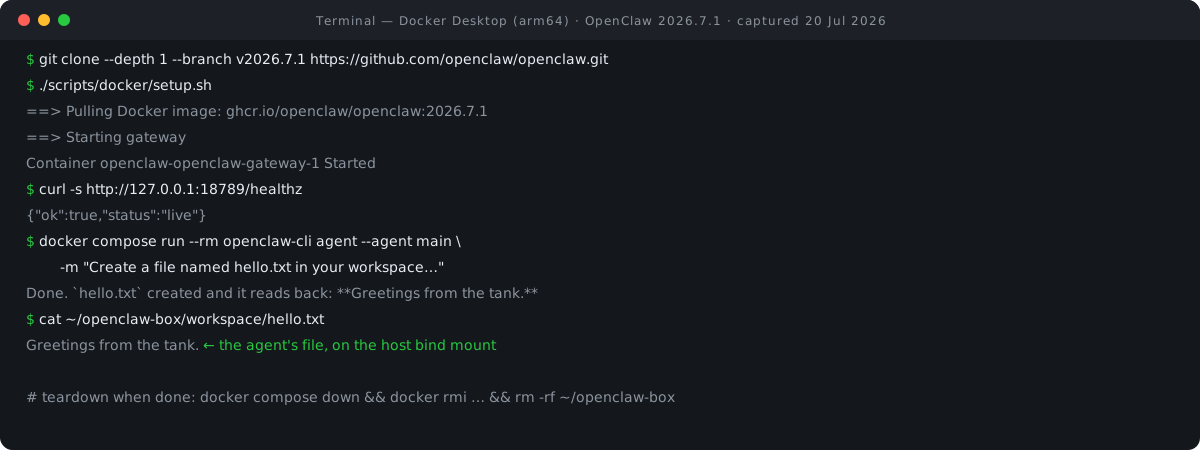
Note that the model has no shell access on your machine. It wrote that file inside the container, in the agent's workspace. And because that workspace is the bind mount we configured in Step 2, the very same file is sitting on the Mac at ~/openclaw-box/workspace/hello.txt — the cat above reads it straight from the host, no Docker involved. The agent's hands are in the container, but the results are in one visible folder. The containment model works as designed.
Step 6: Open the Control UI
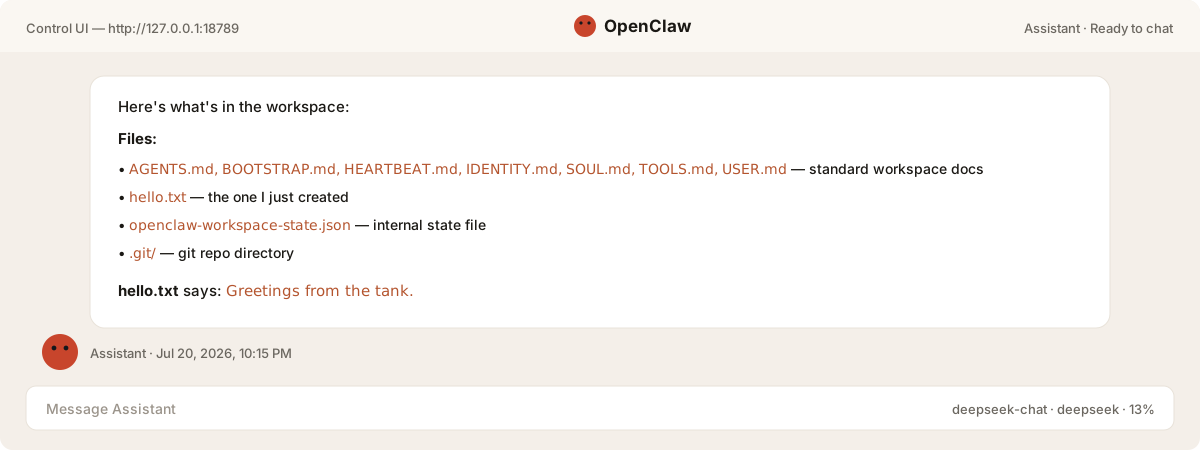
The gateway serves a browser dashboard at http://127.0.0.1:18789/. On first load it asks for the gateway auth token — the one the setup script generated but never printed. It lives in the .env inside your state folder (~/openclaw-box/state in our layout; the docs also offer docker compose run --rm openclaw-cli dashboard --no-open). Paste the token and the chat connects, with deepseek-chat showing in the model strip.
To confirm this was the same agent and not a fresh session, we asked the UI assistant what was in its workspace: it listed the files and quoted hello.txt back — "Greetings from the tank" — the file created from the CLI in Step 5. Real session continuity between the command line and the browser, against the same containerised workspace.
Step 7: Run the built-in security audit — and fix its one warning
OpenClaw ships a first-party audit command, and given this project's CVE history you should treat it as part of setup, not an optional extra. Ours came back with zero criticals and exactly one warning.
docker compose run --rm openclaw-cli --version
OpenClaw 2026.7.1
docker compose run --rm openclaw-cli security audit
OpenClaw security audit
Summary: 0 critical · 1 warn · 1 info
…
WARN
gateway.auth_no_rate_limit No auth rate limiting configured
  gateway.bind is not loopback but no gateway.auth.rateLimit is configured. Without rate limiting, brute-force auth attacks are not mitigated.
  Fix: Set gateway.auth.rateLimit (e.g. { maxAttempts: 10, windowMs: 60000, lockoutMs: 300000 }).
The warning exists because the Docker setup pins gateway.bind=lan inside the compose network (the docs' loopback default applies to native installs), so token brute-forcing is theoretically possible from the LAN. The audit output hands you the fix; we applied it verbatim and re-ran.
echo '{ gateway: { auth: { rateLimit: { maxAttempts: 10, windowMs: 60000, lockoutMs: 300000 } } } }' | docker compose run --rm -T openclaw-cli config patch --stdin
Applied 3 config update(s). Restart the gateway to apply.
docker compose run --rm openclaw-cli security audit
OpenClaw security audit
Summary: 0 critical · 0 warn · 1 info
…
Clean bill. The remaining info line is a summary of attack surface, not a finding. Per the docs, re-run security audit (and periodically --deep) after any config change and before exposing the gateway to anything beyond your machine.
Step 8: Teardown — the whole point of the box
This is why we routed every directory into ~/openclaw-box. Three commands remove the containers, the image, and every byte of state — config, tokens, workspace, auth secrets, the clone itself.
docker compose down
…
 Container openclaw-openclaw-gateway-1 Removed
…
 Network openclaw_default Removed
docker rmi ghcr.io/openclaw/openclaw:2026.7.1
Untagged: ghcr.io/openclaw/openclaw:2026.7.1
Deleted: sha256:6a31d44b2944e7adcd2b582bf6fb463111264ebca97a0201795b799135bd102c
cd ~ && rm -rf ~/openclaw-box
Then we checked our work — the box directory is gone, and Docker reports zero OpenClaw images and zero OpenClaw containers:
ls -d ~/openclaw-box 2>/dev/null || echo "openclaw-box GONE"
openclaw-box GONE
docker images | grep -c openclaw
0
docker ps -a | grep -c openclaw
0
If you decide to keep OpenClaw instead, keep the box: backing up your entire agent is now cp -R ~/openclaw-box.
Going further — per the docs (not executed)
We stopped at a working, audited, single-operator agent. Everything below is per the OpenClaw docs — we did not run these, so treat this as a map, not tested ground.
Channels. Telegram is the simplest first channel: create a bot via @BotFather, then set channels.telegram.botToken in config (or TELEGRAM_BOT_TOKEN) — the Telegram docs page is explicit that you do not use channels login for it. The default DM policy is pairing, with approval codes that expire after one hour; keep it that way. WhatsApp pairs by QR via channels login. Per the security docs, treat every inbound DM as untrusted input to a machine that can run tools.
Skills and ClawHub. openclaw skills install @owner/<slug> pulls from clawhub.ai. After ClawHavoc — 341 malicious skills found by Koi Security in February 2026, most of them delivering a macOS credential stealer via fake "Prerequisites" — the rule is: read the entire SKILL.md before installing, never run prerequisite install commands a skill asks for, and install nothing you would not be able to explain afterwards. Writing your own skill is the safer habit anyway, and our agent skill scaffolder gives you a valid SKILL.md — frontmatter plus instructions — to start from without leaving the browser.
Sandboxing. The docker setup script accepts OPENCLAW_SANDBOX=1, and the security docs recommend sandbox mode: "non-main" or "all" plus denying exec, browser and web tools for any chat-facing agent. The same page publishes a hardened "60-second baseline" config worth applying wholesale before connecting any channel.
Native installs. The docs offer an installer script (curl -fsSL https://openclaw.ai/install.sh | bash), an npm path (npm install -g openclaw@latest then openclaw onboard --install-daemon, which installs a LaunchAgent on macOS), and a DMG for a native Mac app. There is no official Homebrew formula, whatever some blogs claim. If you want a comparison point for a natively installed agent, see our Hermes agent setup guide.
The ASEAN angle: your keys, your folder, your data
Self-hosting with BYO keys has a concrete privacy shape: your prompts, workspace files and channel credentials stay in one folder on your own hardware, and the only party that sees model traffic is the LLM provider you chose and pay directly. For teams in Singapore and the wider region working under PDPA or GDPR obligations, that is a materially shorter list of data processors than a hosted agent platform — one worth comparing against our review of how AI tool companies handle your data. And OpenClaw's messaging-first design happens to fit how this region actually communicates: the channel list leads with WhatsApp and Telegram rather than a proprietary web app.
Versions, limits & cleanup
Pinned versions: OpenClaw v2026.7.1 (GitHub release, 13 Jul 2026) via image ghcr.io/openclaw/openclaw:2026.7.1, digest sha256:6a31d44b… as pulled in Step 2; model deepseek/deepseek-chat declared with a 131,072-token context window; Docker Desktop on macOS arm64 (Apple Silicon). All commands executed 20 July 2026. The docs list 2 GB RAM as the minimum for image builds; no official runtime minimums are published.
What we did not test: messaging channels, ClawHub skills, sandbox mode, the native macOS app, and multi-agent setups — all framed above strictly per the docs. Our terminal output is truncated in places (marked with an ellipsis) but never altered.
Cleanup recap: docker compose down, docker rmi ghcr.io/openclaw/openclaw:2026.7.1, rm -rf ~/openclaw-box. Because Step 2 routed config, workspace and auth secrets into the box, that third command is the whole cleanup — verified on our machine.
FAQ
Do I need a GPU to run OpenClaw?
No. OpenClaw is an agent shell, not a model: the thinking happens at whichever provider you connect, so a cloud key (we used DeepSeek) needs no local hardware at all. Per the docs you can also point it at a local model — from inside the container, LM Studio is http://host.docker.internal:1234 and Ollama http://host.docker.internal:11434. If you want a local model first, start with our Ollama on Mac guide.
Is OpenClaw free?
The software is MIT-licensed (per the npm package and README) and costs nothing. Your real cost is LLM usage on whatever key you bring — which is also your main cost control, since you pick the provider and model per task. To put a number on that before you commit to a model, our LLM cost calculator turns an expected token volume into per-request and monthly figures.
Can it run fully offline?
The stack can: per the docs, docker load a saved image and run ./scripts/docker/setup.sh --offline, which verifies the local image and disables pulls. But the agent still needs a model. Pair it with a local runtime like Ollama on the same machine and the whole loop stays on your hardware; with a cloud key, model calls are the one thing that leaves.
Is port 18789 exposed to the internet?
Not by itself. On our machine Compose published 18789 on the host, reachable from the local network and gated by the gateway token — which is why the audit's rate-limiting fix in Step 7 is worth applying immediately. Do not port-forward 18789 from your router: 2026's exposed-instance scans (17.5k–40k reported, methodology varies) and a fixed one-click RCE in the Control UI are exactly what happens when this port meets the open internet. The docs' advice: keep binds tight, never expose an unauthenticated gateway, and prefer Tailscale-style private networking if you need remote access.
- openclaw/openclaw repository + releases (v2026.7.1); star count via GitHub API — GitHub (accessed 20 Jul 2026)
- Docker install guide — OpenClaw Docs (accessed 20 Jul 2026)
- Getting started (onboarding, gateway, Control UI) — OpenClaw Docs (accessed 20 Jul 2026)
- Model providers — OpenClaw Docs (accessed 20 Jul 2026)
- Security guide (trust model, audit, hardening baseline) — OpenClaw Docs (accessed 20 Jul 2026)
- Skills & ClawHub — OpenClaw Docs (accessed 20 Jul 2026)
- Telegram channel setup — OpenClaw Docs (accessed 20 Jul 2026)
- Project lore (Clawdbot → Moltbot → OpenClaw rename history) — OpenClaw Docs (accessed 20 Jul 2026)
- openclaw dist-tags and package metadata (MIT license, Node engines) — npm registry (accessed 20 Jul 2026)
- Peter Steinberger: joining OpenAI; OpenClaw to a foundation — steipete.me (accessed 20 Jul 2026)
- CVE-2026-25253 one-click RCE, fixed v2026.1.29 — The Hacker News (news report) (accessed 20 Jul 2026)
- 17,500+ exposed OpenClaw instances — Hunt.io (security-news report) (accessed 20 Jul 2026)
- 40,214 exposed instances across 28,663 IPs — Infosecurity Magazine (news report) (accessed 20 Jul 2026)
- ClawHavoc: 341 malicious ClawHub skills — Koi Security (vendor report) (accessed 20 Jul 2026)

View author profile → · Editorial policy