The advice everyone has heard is that a black rectangle does not redact a PDF. It is correct, it is repeated everywhere, and on its own it has not stopped the leaks — because the rectangle is only one of the ways a name gets out, and the checks people run afterwards are worse than useless.
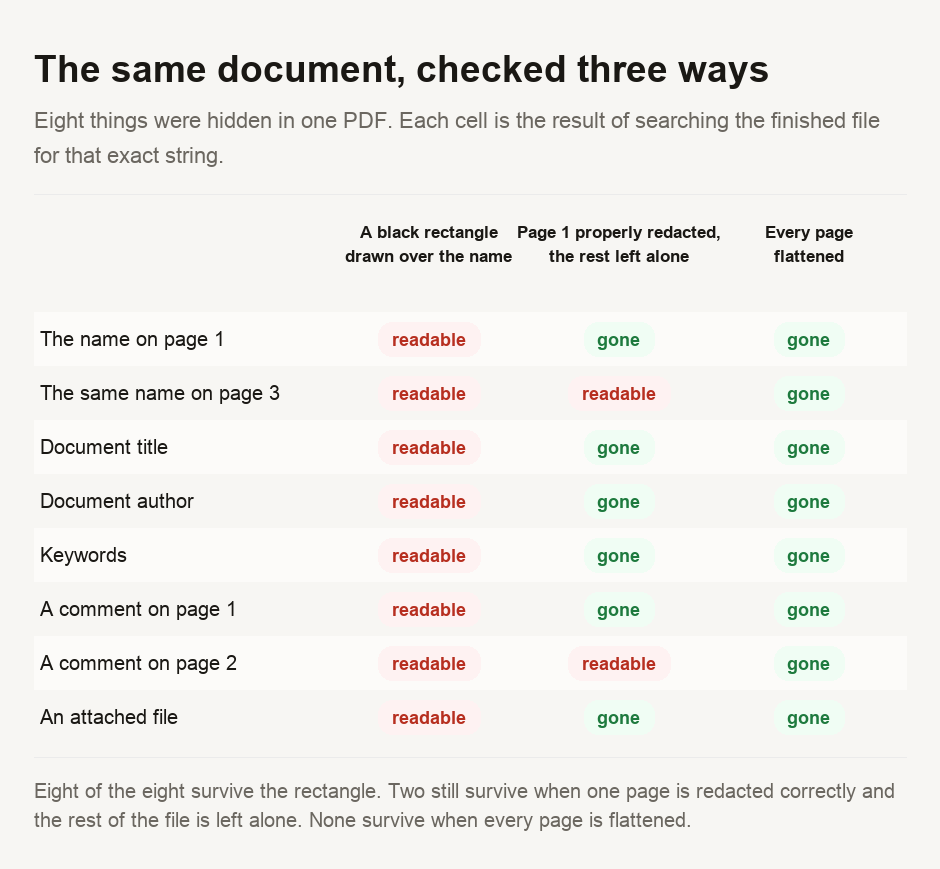
To find out how much worse, we hid eight things in a single test document: a name on one page, the same name again further in, the title, the author, the keywords, two review comments, and an attached file. Then we redacted it three ways and searched every finished file for all eight strings.
The five steps
- Work on a copy, and treat it as the file you will send.
Redaction is destructive when it is done properly. Keep the original somewhere else. Do the work on a duplicate, because a properly redacted file cannot be un-redacted, even by you.
- Remove the content rather than covering it.
Use a tool that says it removes or flattens, not one that offers a black shape. Flattening turns the page into an image, so there is no text object left to recover. The cost is that the rest of that page is no longer selectable or searchable. That is the price of certainty.
- Search the whole document for the thing you removed.
Not just the page you were working on. The most common failure in this whole subject is a name that appears twice, and there is nothing clever about it — you redact the page you were looking at, and the appendix keeps a copy.
- Clear the parts of the file that are not on any page.
A document's title and author are stored in its properties. Reviewer comments, attached files and form data are all kept separately, too. None of this information lives on the page, so redacting a page will not touch it.
- Check the finished file, and check it the right way.
Open the file you are about to send and try to get the text back out of it. Do not open it in a text editor and search — that test returns nothing on files that are leaking badly, for reasons in the next section.
Why searching the file proves nothing
The natural check is to open the PDF in a text editor and look for the name. On our test document that search returns 0 results while the name is fully recoverable, and it would return zero on almost any PDF, because the page's contents are compressed and, inside that compression, the text is stored as hexadecimal digits rather than letters.
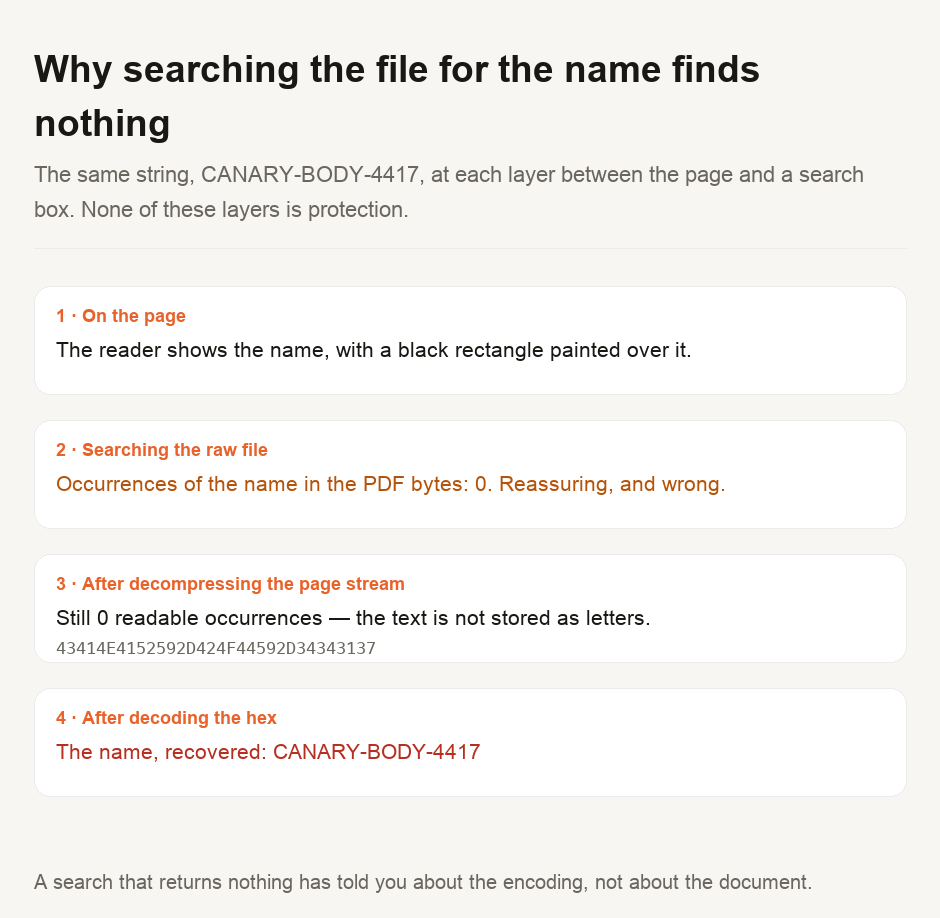
This matters more than it sounds. A check that reliably returns nothing is not just weak, it is backwards: it builds confidence in inverse proportion to how much it actually inspects. Anyone who has ever concluded a document was clean because a search box came up empty was reading the encoding, not the document.
The four hiding places that are not the page
Document properties. Title, author, subject and keywords are stored once for the whole file and displayed on no page at all. In our test they survived the rectangle untouched, because they were never anywhere near it.
Comments and annotations. A sticky note is a separate object that points at a spot on a page. It is not part of the page's drawing instructions, so redrawing a page does not necessarily disturb it. This one produced the result that surprised us most, below.
Embedded files. A PDF can carry whole documents inside it. Most readers keep the attachments pane closed, so a spreadsheet can travel with a file for years without anyone opening it deliberately.
Form field values. What somebody typed into a form is stored on the field, separately from the page it appears on. Flattening the page's appearance does not always discard the value behind it.
What this audit found in our own tools
We have twenty-one PDF tools, and they all leave users with the same question. After redacting something, how do you know it worked? So the checking step got a tool of its own, and the first thing it was pointed at was our own redactor.
Two results, one reassuring and one not.
The reassuring one: our redactor builds a new document rather than editing the old one, so the title, the author, the keywords and the attachment are all gone from the output even when only a single page was marked. That is better than its own page claims. We are saying it plainly because the same design choice is a small trap: the attachment is discarded whether or not you wanted to keep it.
The one that is not reassuring: a comment on a page you did not redact survives. Copying an untouched page carries its annotations across with it. That is correct behaviour for copying a page, but it is exactly what someone redacting a document is trying to prevent. In the middle column of the figure above, that comment and the same name on page 3 are the two things still readable in a file whose redaction was, on the page it was applied to, perfect.
A third, smaller finding came from testing the new checker rather than the redactor, and it changed the tool. A correctly redacted file — every page flattened, nothing left — reported that content had come back out through one route. The route was the document properties and the content was the line Producer: RECATOOLS PDF Redactor, written into the file by the redaction tool itself moments earlier. The report was technically true, but useless, since it flagged every properly redacted file as leaking. The checker now separates a document's content from its production history. A redacted file, it turns out, usually announces that it was redacted, and with what tool.
Use a tool that removes rather than covers, and accept that the redacted page stops being selectable — that is what tells you the text is gone. Then search the whole document for what you removed, because the same name on a later page is the most common failure by a distance. Clear the properties, comments and attachments separately. Redacting the page content does not touch any of them. Do not check your work in a text editor: that search returns nothing on a file that is leaking, which makes it worse than not checking. Check the file you are actually going to send, not the one you were working on.
Run your own numbers
Our PDF redaction checker reads a file locally. It reports on the five ways text can leak, marks each page as either live text or a flattened image, and lets you search the whole file for a specific name. The PDF redactor does the removing, the PDF metadata cleaner handles the properties, and the PDF image extractor answers the version of this question about pictures — a photograph hidden under a rectangle comes back out whole. If the underlying idea here is new to you, encoding is not encryption is the same mistake in a different costume.
- Every result here comes from a test document built for this guide and searched afterwards for eight known strings. The fixture generator, the redaction reproduction and the measurement script are committed alongside the guide, so any figure can be reproduced by running them.
- The measurement was made with pypdf in Python, and then repeated independently in a browser with pdf.js and pdf-lib — two different implementations, in two languages, over the same three files. They agree on every cell of the table.
- The claim about our own redactor was checked against its source and its output rather than its documentation: it builds a new document with pdf-lib, copies unmarked pages verbatim, and flattens marked ones to an embedded image. Copying a page is what carries a comment across.
- ⚠️ A clean result is a statement about the routes that were checked, not a proof of absence. Both the measurement here and the checker read what standard libraries enumerate; a producer that stores data somewhere unusual would not appear. For obligations that are legal rather than practical, treat any automated check as one step that passed.
The figures describe one test document and one implementation of each method. Other redaction tools make different choices — some remove text without flattening, some strip properties, some do not — so the specific numbers are ours and the failure modes are general.

View author profile → · Editorial policy